Officina 3D Studio
3D print cutting workbench for Windows

Print models bigger than your printer.

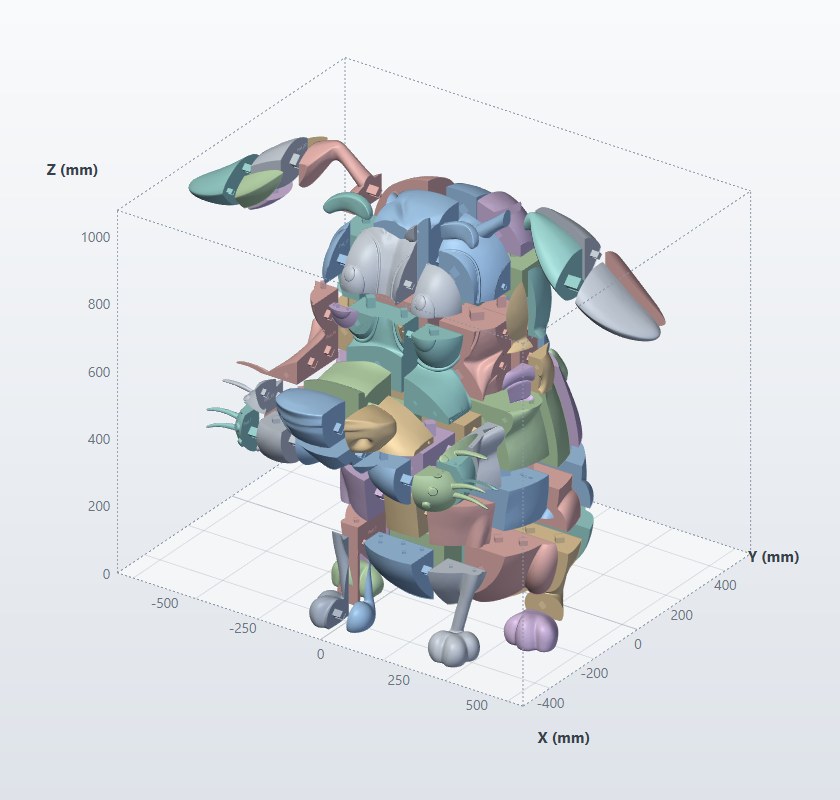
Officina 3D Studio cuts a large model into parts that each fit your build plate, adds male-female connectors so the parts lock together, engraves a number on every part and tells you the assembly order.

Windows 10 / 11 (64-bit) · STL, OBJ, PLY and 3MF · Version 1.0.0

A 1.1 m model cut into 83 parts that fit a 220 × 220 × 250 mm printer, with connectors

How it works

From one oversized model to a box of printable, numbered parts in four steps.

Open your model

STL, OBJ, PLY or 3MF (Bambu Studio and PrusaSlicer projects too). Sizes are in millimetres.

Enter your printer

Printer size X, Y, Z and border clearance. Round beds and several different printers are supported.

Preview the cut

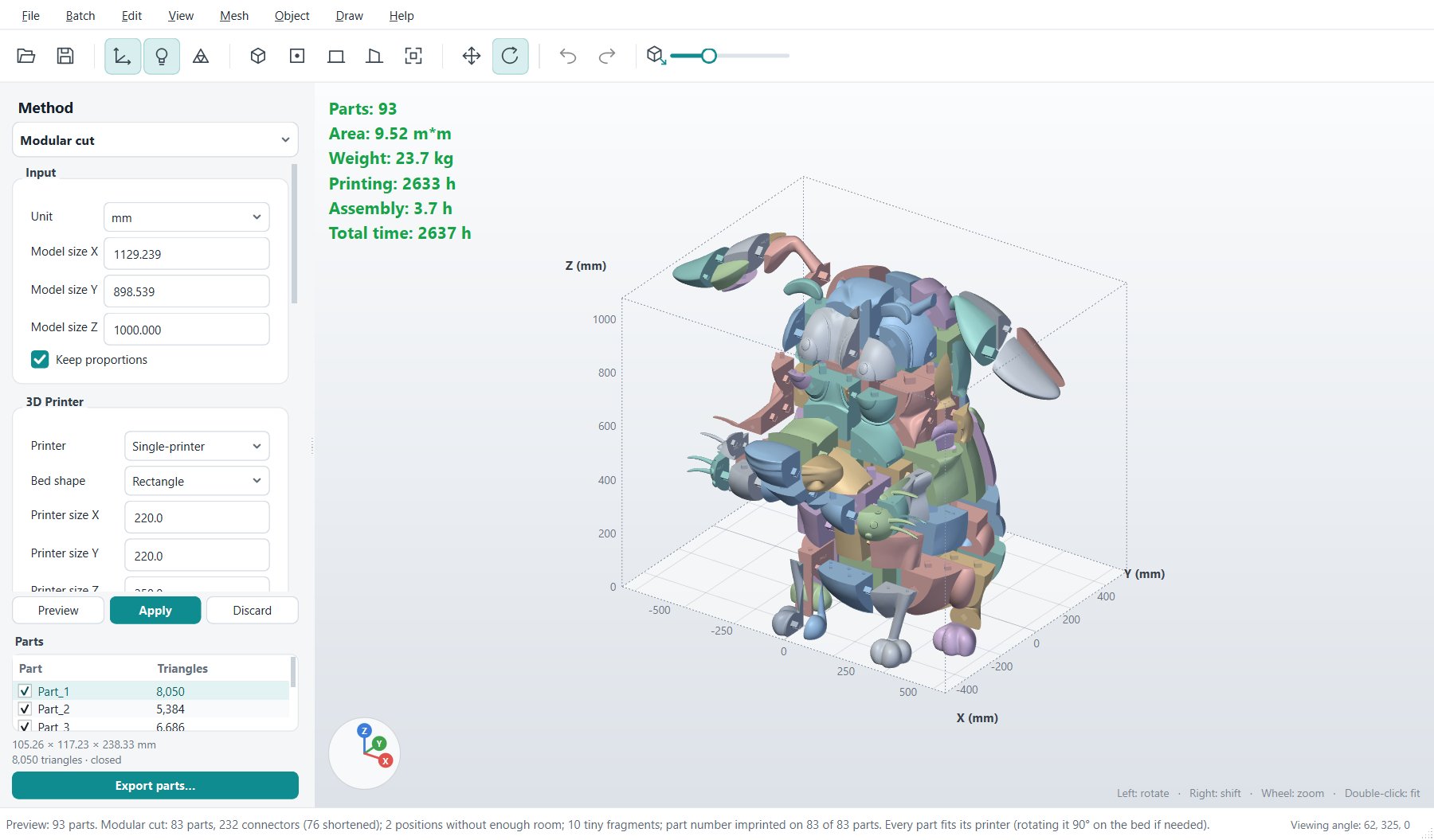
Press Enter: the model is split, connectors are added and the green statistics show parts, weight and printing time. Press S to explode the view.

Export and print

Export every part as STL or OBJ in one ZIP, with the assembly sequence. Lay each part flat in your slicer and print.

The Officina 3D Studio window: method and printer settings on the left, the cut model with green print statistics on the right

Modular cut that fits your printer

The model is cut where the section is largest and every part is checked against your build volume, turning it 90° on the bed when that helps.

  • Single printer, round bed or a mix of printers, with work balanced between them
  • Part numbers engraved on the largest flat face
  • Assembly sequence saved with the exported parts
  • Statistics: parts, area, weight, printing and assembly time
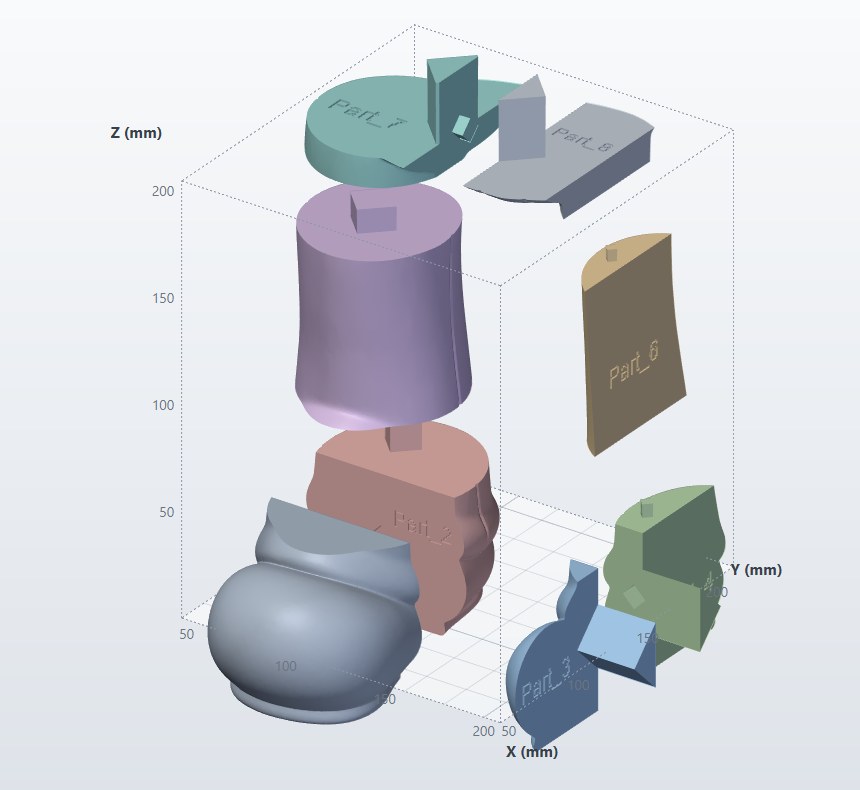
A figure from a 3MF file cut into 8 numbered parts that fit a 100 mm printer

Connectors that lock the parts together

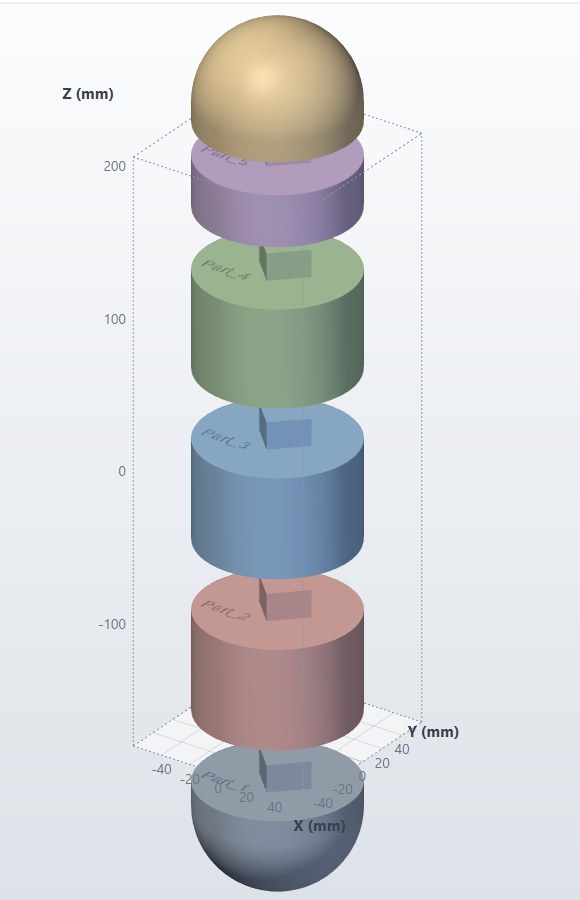
Every joint gets a plug on one part and a matching hole on the other, sized from the cut face: big parts get big connectors, small parts small ones, with no tiny extra pegs.

  • Plug or separate dowel; square, round, hexagonal and more
  • Prism or frustum design, depth ratio and tolerance for a tight or loose fit
  • Connectors are added after the last cut, so a later cut never slices a plug
  • Optional lap joints and chamfered edges
A column cut into six parts with a square plug between each pair

Grid, planar and free cuts

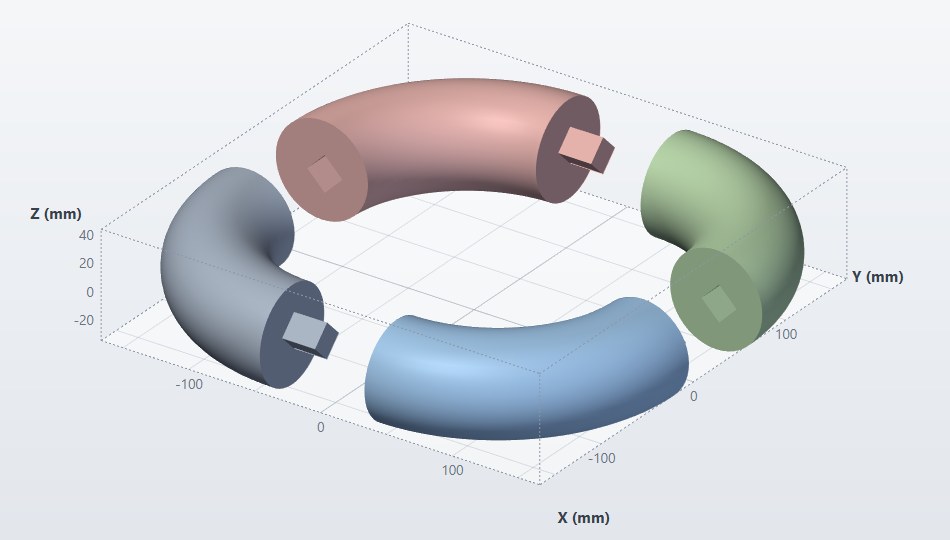
When you want to decide where to cut: split along a grid (also with staggered joints for strength), with one plane, with several free planes, with a cone or radially around an axis.

A ring cut with a 2 × 2 grid, with a square plug at every joint

All the tools

Modular cutFit any printer
Planar cutAlso natural, along concave areas
Grid cutRegular or staggered
Flexi cutSeveral free planes
Conic cutInside / outside a cone
Radial cutSectors around an axis
Printer volumePlain grid to the build size
Stack & HashLayers and slotted panels
LithophaneFlat or curved, from a photo
Image reliefHeight map from an image
3D textExtruded lettering
Basic shapesBox, sphere, cylinder

Buy a license

One license key works on one computer. Activate it once with an internet connection; after that Officina 3D also works offline.

  • Activation in a few seconds when you first start the program
  • Works offline for up to 14 days between online checks
  • Reinstalling on the same computer keeps your activation
  • New computer after a hardware failure? Support can move your key
One-time payment
€25once, for one computer
  • Full program, all cutting tools and connectors
  • License key sent by email right after payment
  • All 1.x updates included
  • Pay by card, PayPal, Apple Pay or Google Pay
Coming soon

Secure checkout by Stripe. VAT is applied automatically where required. Prices include VAT where applicable.

Download Officina 3D Studio

Version 1.0.0 for Windows 10 and 11 (64-bit)

Download installer (62 MB)
SHA-256: 310EA38241EDD571B49F69392D40ED1BD35903C097DD334FFB4F9B11A1AE00AF

System requirements

Operating systemWindows 10 or Windows 11, 64-bit
Memory8 GB RAM recommended (very large models use about 1 GB)
GraphicsAny graphics card with OpenGL support
DiskAbout 300 MB
InternetNeeded to activate the license and for the periodic checks

Found a bug?

Please tell us: every report helps make Officina 3D better, and bugs are fixed in the next update.

  • What you did, step by step, and what happened
  • The method and settings you used (for example Modular cut, printer size, connector)
  • A screenshot of the window or of the error message
  • If you can, the 3D model file (it is used only to reproduce the problem)
  • The program version (1.0.0) and your Windows version

Send a bug report

Write to us by email; we reply as soon as possible.

The support email address will be published here very soon.

If the program cannot start, attach the file %LOCALAPPDATA%\Officina3D\startup-error.txt.

Questions

Windows says "Windows protected your PC" when I run the installer.

Officina 3D is a new program and Windows has not seen it on many computers yet. Click More info and then Run anyway. You can compare the SHA-256 shown above with the file you downloaded.

Which file formats can I open and export?

Open STL, OBJ, PLY and 3MF; export STL or OBJ, single parts or all parts in a ZIP. Coordinates are in millimetres.

My model has holes or open surfaces.

Cuts and connectors need a closed solid. Repair the mesh first (most slicers and mesh tools can do it), then open it again.

Can I use my license on two computers?

No: each key is tied to one computer. Buy one key per computer.

What data does the program send?

Only what the license needs: the key, an anonymous computer identifier and the program version. See the privacy notice. Your models never leave your computer.